Interactive web terminals
This documentation is partially based on GitLab documentation Interactive web terminals. Please refer to that documentation for more information.
Interactive web terminals give the user access to a terminal in GitLab for running one-off commands for their CI pipeline. You can think of it like a method for debugging with SSH, but done directly from the job page.
Debugging a running job
Sometimes, when a job is running, things don’t go as you expect. It would be helpful if one can have a shell to aid debugging. When a job runs, the right panel displays a debug button ( ) that opens the terminal for the current job.
Only the person who started a job can debug it.
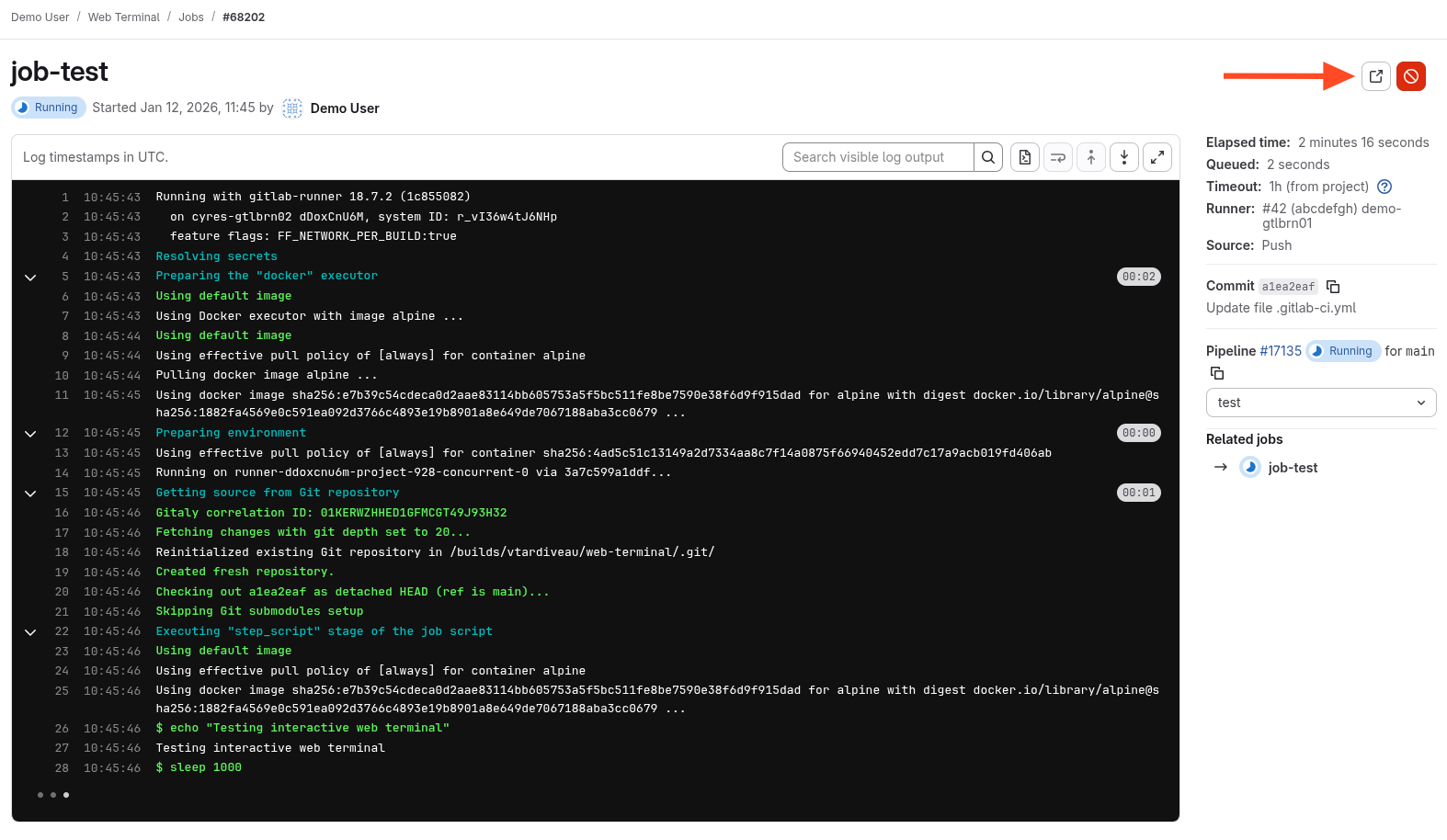
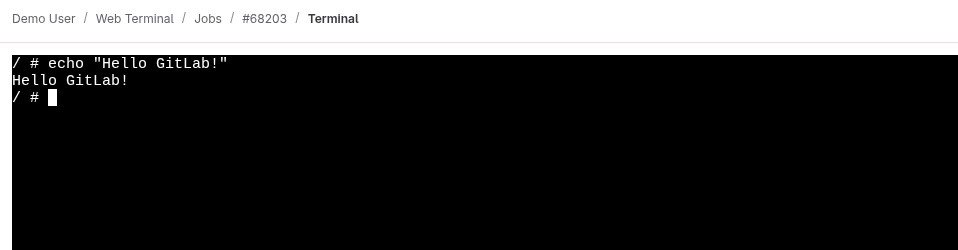
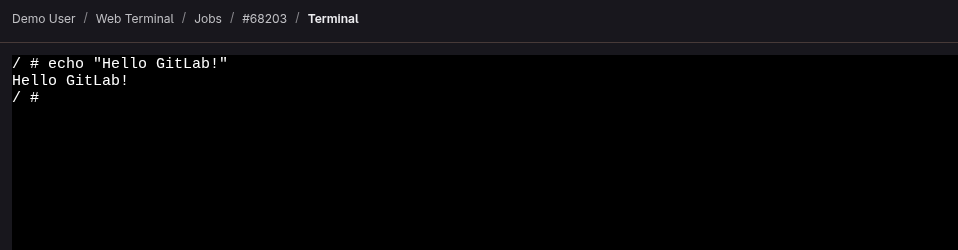
When selected, a new tab opens to the terminal page where you can access the terminal and type commands like in a standard shell.
The Docker executor does not keep running after the script section is finished. The terminal automatically
disconnects and does not wait for the user to finish.
Follow this issue for updates on improving this behavior.
Configuration
By default, this option is disabled and requires:
- A configuration change at the Runner level
- Authorization of outbound requests in the GitLab web UI
Configuring GitLab Runner
Runners managed by adista
If your Runners are managed by adista, simply open a ticket to request this and confirm that you have configured outbound requests correctly.
Runner self-managed
If you self-host your Runners, modify the [session_server] section of the config.toml file.
[session_server]
  listen_address = "[::]:8093" # Listen on all available IPv4 and IPv6 interfaces on port 8093
  advertise_address = "my-runner-host-name.tld:8093" # Or my.runner.IP.address:8093
  session_timeout = 1800
Ensure that:
- GitLab can connect to the
advertise_address. - The
advertise_addressis a public IP address, unless you have configured outbound requests.
Other possible cases
If your GitLab is hosted by adista and your Runner is self-hosted, you can set the advertise_address to a public IP address.
For added security, you can add a firewall rule allowing only your GitLab's IP address to access it.
Authorization of outbound requests
If the outbound requests option is not configured or if you disable it later, Runners may no longer be able to pick up jobs.
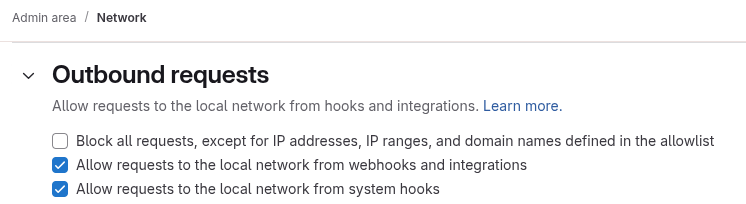
In the admin area, in the section Settings > Network > Outbound requests, check the box Allow requests to the local network from webhooks and integrations and click on Save changes.