Garbage collection
When you delete images in Harbor, they remain on the disk. You must then run a cleanup process to free up the space occupied by removing blobs that are no longer referenced by a filesystem manifest. This is the garbage collector.
The following documentation explains how to run this garbage collection from the Harbor administration interface on demand or scheduled.
La documentation suivante vous explique comment, depuis l'interface d'administration du Harbor, exécuter cette garbage collection à la demande ou à intervalles réguliers.
Implementation
-
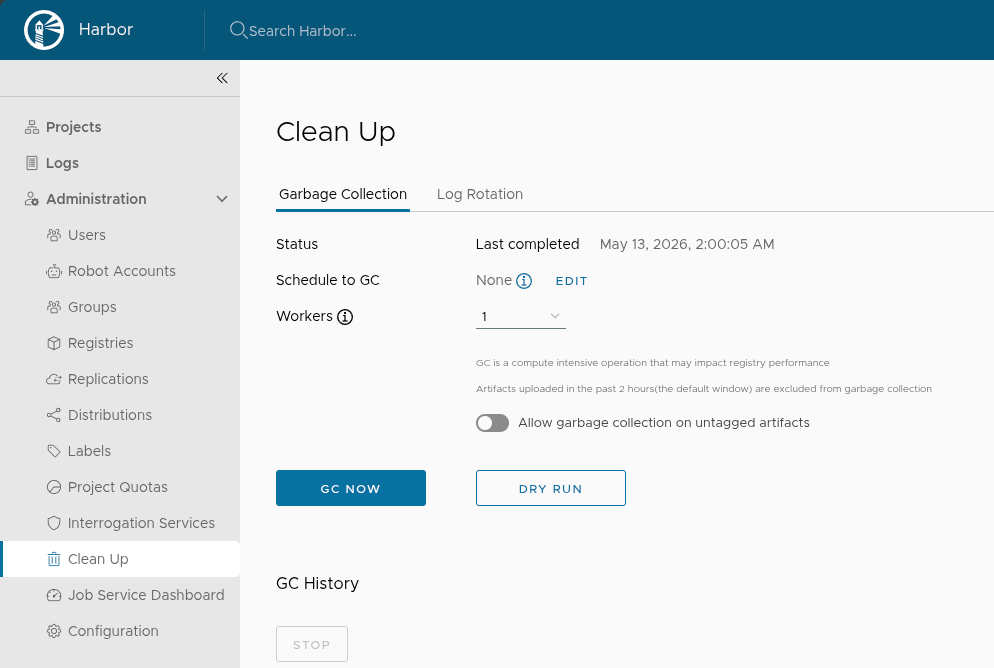
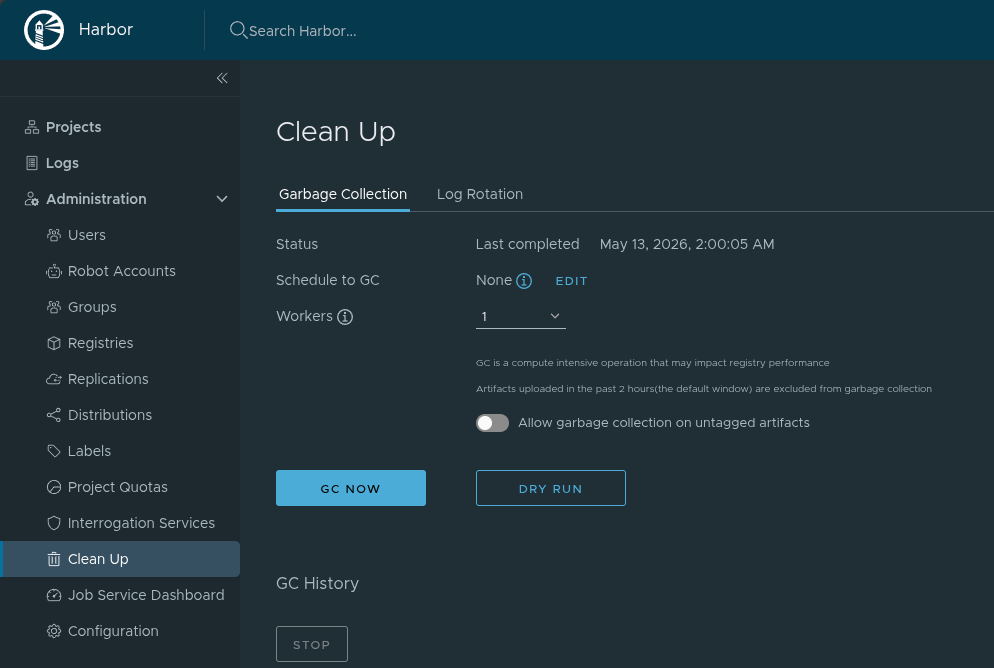
Logged in as an administrator, got to the Administration > Clean Up page, Garbage Collection tab:
-
Fill in the following information:
- Schedule to GC:
- None: no scheduled
- Hourly: every hour
- Daily: every day around midnight
- Weekly: every Saturday around midnight
- Custom: according to a defined cron task
- Workers: number of parallel tasks
- Allow garbage collection on untagged artifacts: if checked, Harbor will delete the untagged artifacts, then performs Garbage collection on them.
- Schedule to GC:
-
Click DRY RUN to get a rough estimation of free up space, without removing any data.
-
Click GC NOW.
View history
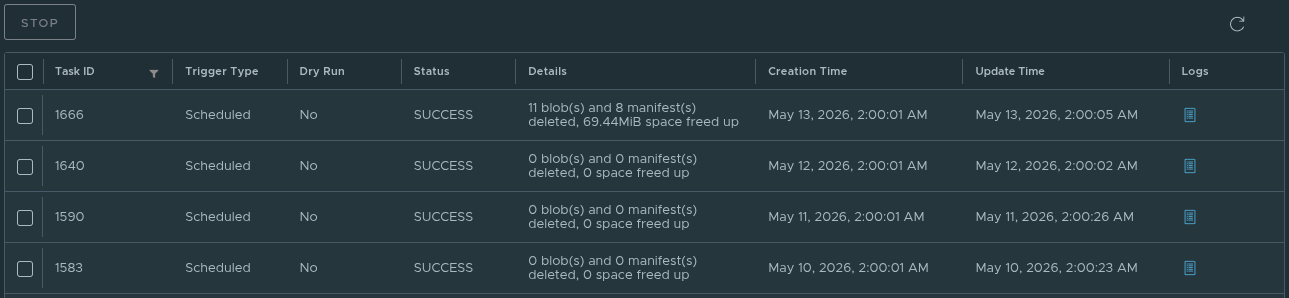
Each execution of the garbage collection is logged and displayed under the configuration options, on the Administration > Clean Up page, Garbage Collection tab:
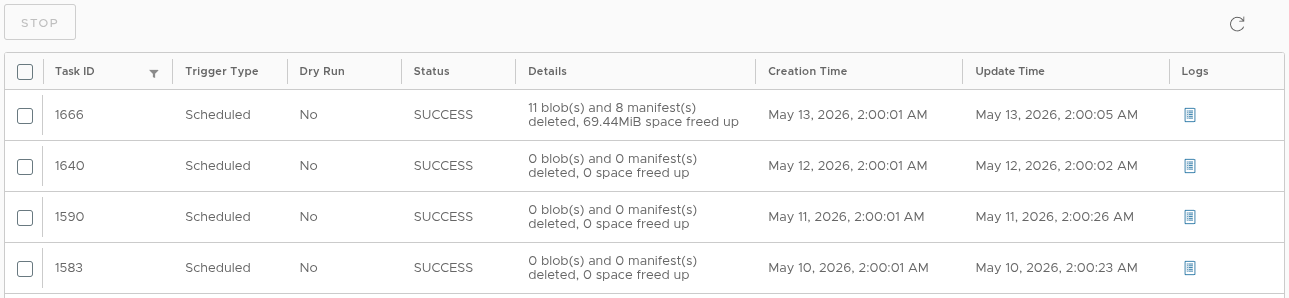
You can view the logs by clicking the Logs button to the right of a task in the table.
Stop a running garbage collection
-
Go to the Administration > Clean Up page, Garbage collection tag.
-
In the task list, click the current task you want to stop, click STOP, and confirm the action:
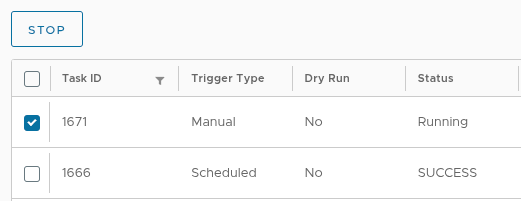
 info
infoThis will prevent the Garbage collection from deleting new artifacts, but artifacts already deleted are permanently gone.